
To load AI avatar assets without slowing your SaaS app, render the core product first, wait for a meaningful intent signal, then prepare the selected avatar in stages. Version large assets with immutable URLs, measure download and decode separately, and expose a ready state. Preload only resources the current user is likely to need.
Key takeaways
- Keep the core task independent from optional avatar startup.
- Load the selected avatar, not the entire avatar catalog.
- Separate download, parsing, GPU upload, and first render in your metrics.
- Cache versioned assets and retain a rollback path.
1. Set a product loading budget
Choose the moment when the avatar must be usable. An avatar that appears after a user opens “Guided setup” has a different budget from one that speaks on the first screen. Record the core page’s Largest Contentful Paint and interaction readiness before adding avatar work. The Core Web Vitals guidance explains the user-facing performance signals you should protect.
Do not gate navigation, forms, or the normal support path on a large character download. The user may never start the avatar. If the product requires the avatar, show specific preparation progress and a usable fallback rather than freezing the whole interface.
2. Split the avatar into loading stages
Break startup into the application shell, avatar UI, selected character assets, motion runtime, audio initialization, and optional backgrounds or effects. A route-level JavaScript split can keep the avatar bundle out of pages that do not use it. MDN’s lazy-loading guide describes the difference between critical and non-critical resources.
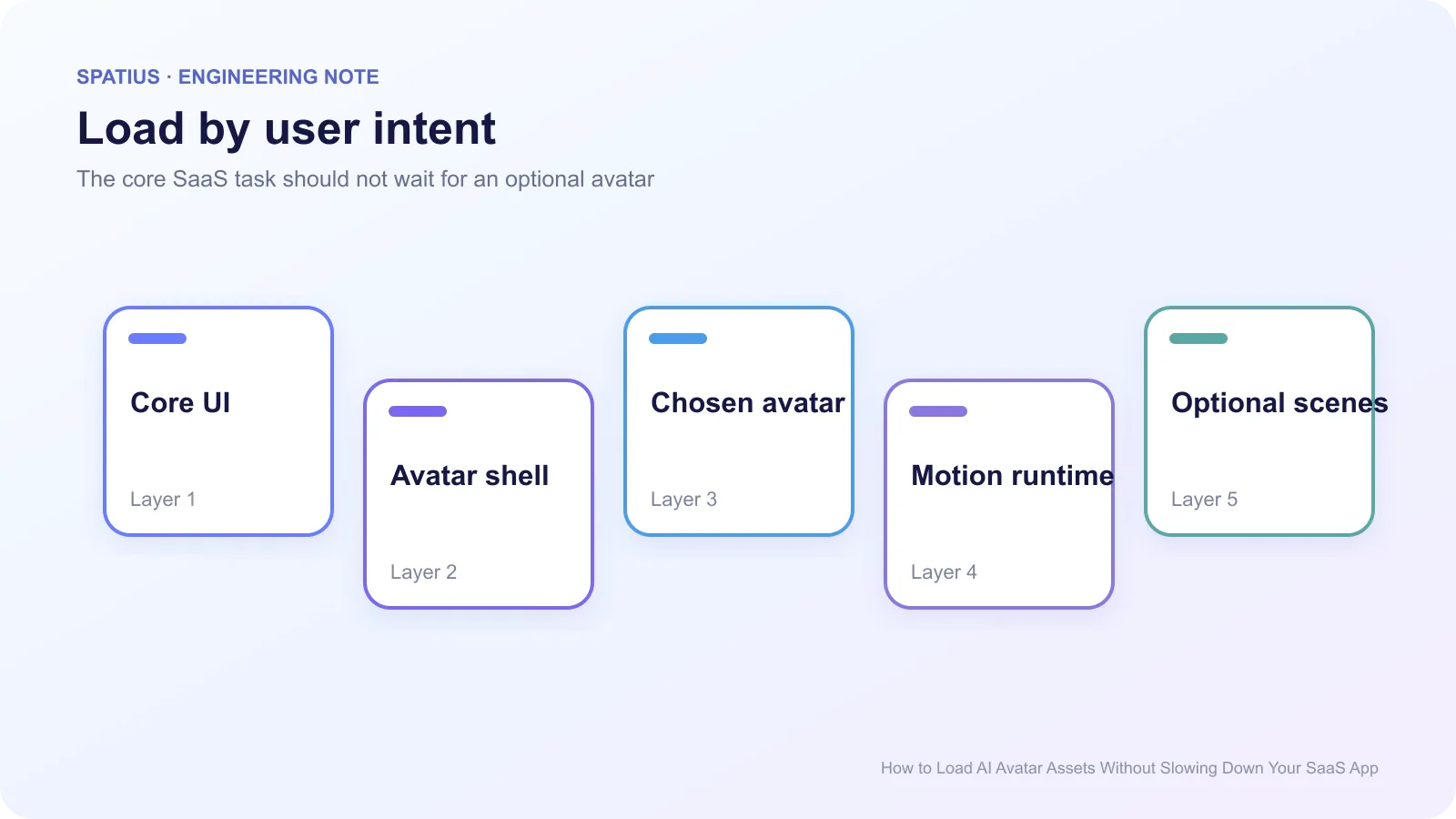
Use an intent signal that is early enough to help but specific enough to avoid waste: opening the avatar panel, entering the relevant workflow, selecting a character, or focusing the start control. The <model-viewer> project documents a comparable interaction-triggered loading pattern for 3D models. Hover alone is weak on touch devices and can trigger needless downloads.
3. Preload only confirmed critical resources
rel="preload" raises priority; it is not a general speed button. The web.dev guide to preloading critical assets warns that unused preloads produce browser warnings and compete with truly important resources. Set the correct as and crossorigin attributes or the browser may fetch the same asset twice.
Use prefetch for a likely future navigation where supported, and lazy loading for optional scenes. Confirm actual request priority and timing in the Network panel rather than assuming a hint worked. Chrome’s priority hints article explains how fetch priority interacts with browser heuristics.
4. Cache immutable versions
Give each released asset an immutable URL containing a version or content hash. Serve it with a long cache lifetime, then publish a new URL when the asset changes. MDN’s HTTP caching guide explains why immutable resources avoid repeated validation while versioned URLs prevent stale replacements; its immutable directive reference shows the corresponding response control.
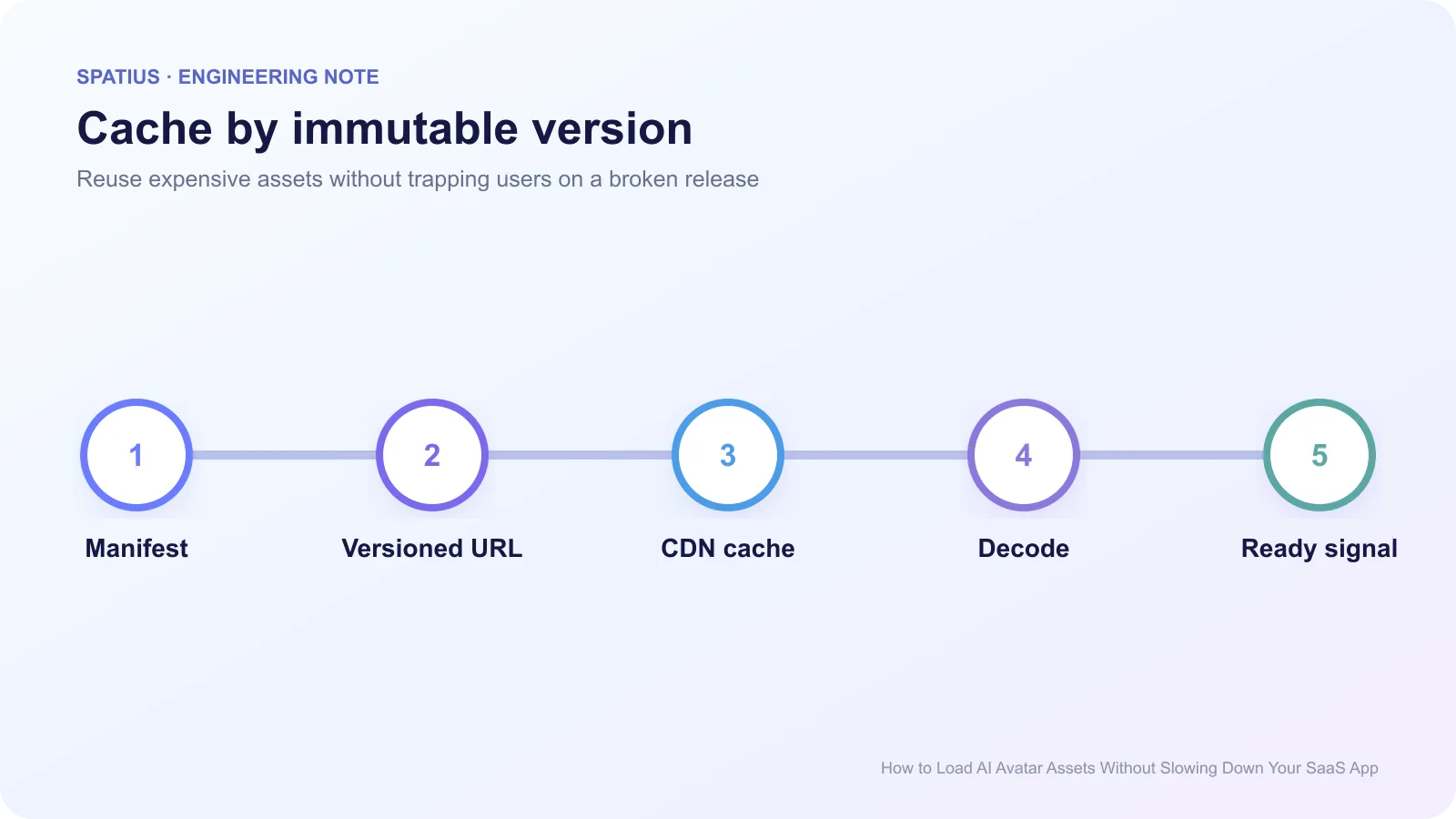
Keep a small manifest that maps the selected avatar to compatible asset and runtime versions. A service worker can pre-cache deliberate offline or kiosk resources with the Cache Storage API, but do not duplicate the browser cache without a clear invalidation plan.
5. Compress formats the runtime can decode cheaply
Smaller files can cost more CPU if decoding is expensive on the target device. Measure both transfer size and preparation time. For glTF pipelines, Khronos documents Draco mesh compression and KTX 2.0 textures; confirm your runtime and device matrix support the chosen extension before shipping it.
Avoid one oversized scene file when users only need one character and one background. But do not split assets into hundreds of tiny requests without measuring connection overhead and parse behavior. There is no universal ideal chunk count.
6. Measure download, decode, and first render separately
Use PerformanceResourceTiming to record fetch phases and transfer size. A coordinator such as Three.js LoadingManager can expose grouped progress, but the product should still define what “ready” means. Add application events for asset validation, decode, GPU upload, renderer ready, and first visible avatar frame. The browser may report a fast cached fetch while the GPU preparation still takes seconds.
Watch for renderer loss. The WebGL webglcontextlost event gives the client a signal to pause work and rebuild state rather than leaving a blank canvas.
Loading assets in a Spatius client
AvatarKit owns client-side avatar loading, rendering, playback, and control. Motion Server receives avatar speech audio and returns motion data. The Spatius Developer Docs Map defines those terms and links to the exact SDK references.
Direct Mode supports Web, iOS, Android, and Flutter, but each platform uses its native rendering stack. Check the chosen client reference from the Direct Mode overview before copying a browser loading strategy to native apps.
Pair this guide with time-to-first-motion optimization and low-end device testing so a fast development laptop does not become the only acceptance environment.
Frequently asked questions
Should we preload the avatar on every page?
No. Preload when the avatar is required or a strong intent signal makes startup likely. Data on overusing lazy loading also shows why loading policy should reflect viewport and intent rather than one rule for every asset. Otherwise protect the core SaaS interface and load the avatar route on demand.
Is a smaller asset always faster?
No. Network transfer, decompression, parsing, GPU upload, memory pressure, and cache state all contribute to startup time.